How the Realy Chrome Extension Works: A Step-by-Step Zillow Guide
From Zillow search to full analytics: learn how to open the Realy analyzer, customize assumptions, explore listings on the map and table, and sync your numbers across the extension and Realy app.
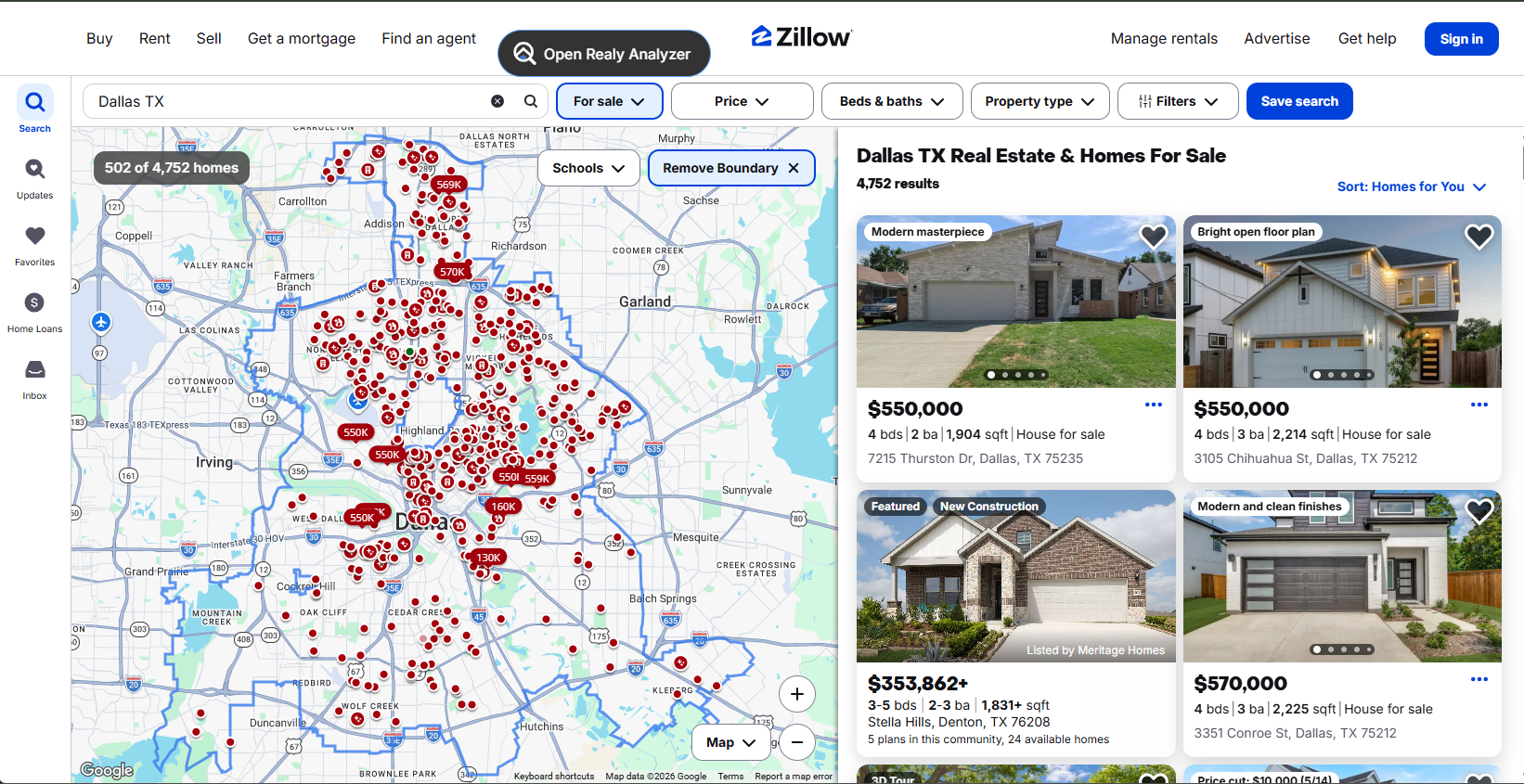
Realy turns Zillow into an investment analytics workspace. Instead of copying listing data into spreadsheets, you browse, rank, and underwrite deals where you already search, then drill into any property with assumptions you control.
This guide walks through every screen in the Realy Chrome extension: Zillow search, the extension tab, property side panels, listing detail pages, and the full Realy app analysis view.
Before You Start: Install the Extension
If you have not installed Realy yet, add it from the Chrome Web Store:
Realy – The Investor's Unfair Advantage on Zillow
Once installed, open any Zillow search results page (for example, Dallas, TX listings) and follow the steps below.
Step 1 (Zillow Search): Open the Analyzer
On a Zillow search results page, Realy adds a floating “Open Realy Analyzer” button. You can drag it anywhere on the screen so it stays out of your way while you browse.
What to know:
- The button appears only on Zillow search pages (city or neighborhood result lists), not on every Zillow URL.
- Drag the button to your preferred corner or edge. It remembers your placement for a cleaner workflow.
- Click the button to open a dedicated Realy extension tab with a table and map view of every listing on that search, each pre-analyzed with investment metrics.
Try it: Navigate to https://www.zillow.com/dallas-tx/ (or any market you are researching), then click Open Realy Analyzer.
Step 2 (Extension Tab): Table, Map, and Assumptions
After you click the floating button, Realy opens its analyzer tab. Here you see a detailed view of all analyzed properties from your current Zillow search, sortable in the table, explorable on the map.
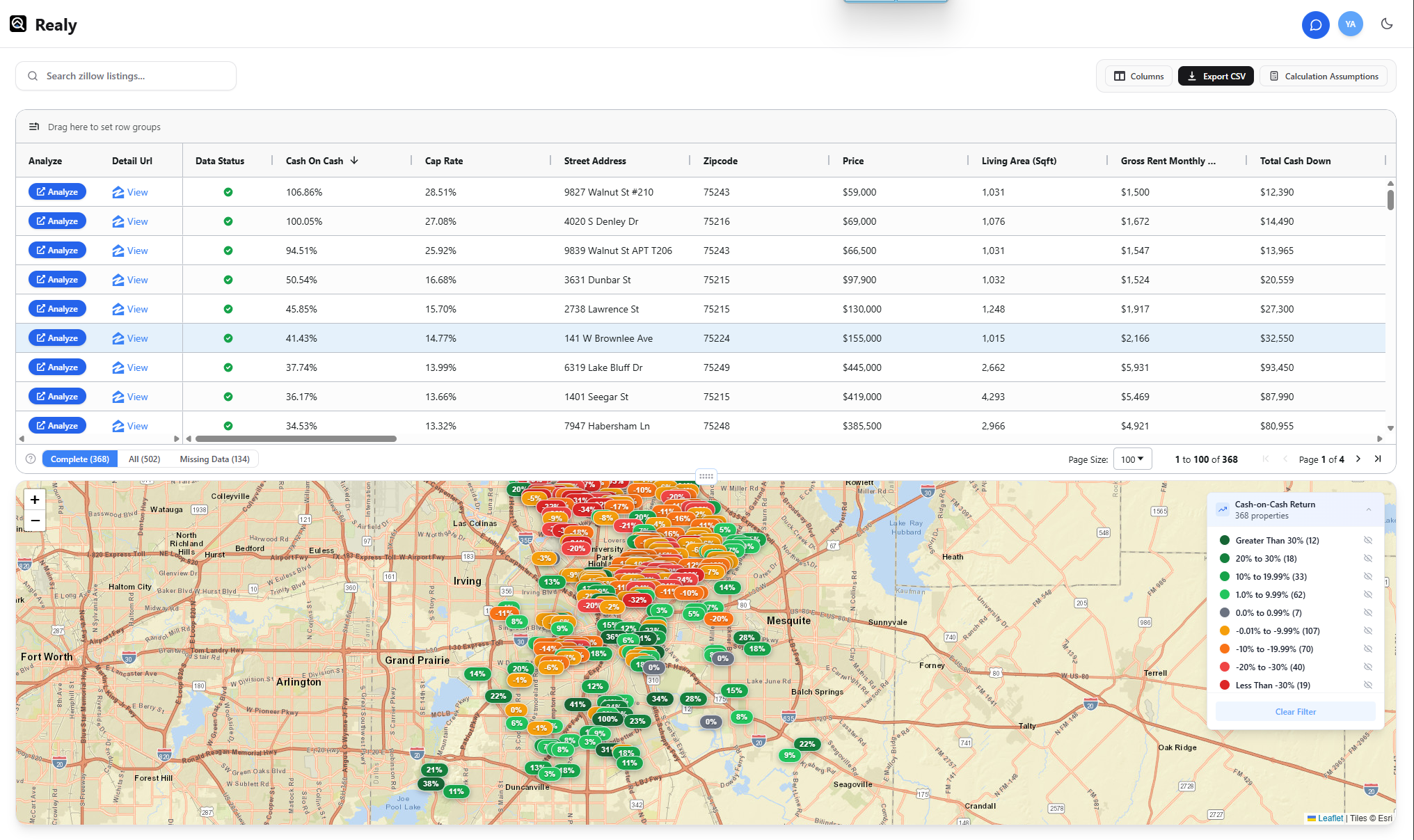
What you can do here:
- Scan the market at a glance: Compare cap rate, cash flow, cash-on-cash, and other metrics across dozens of listings without opening each Zillow page.
- Switch between table and map: Use whichever view fits how you hunt for deals (dense markets vs. geographic clusters).
- Adjust calculation assumptions: Change financing, expenses, rent estimates, and other inputs to match your strategy. Those assumptions apply across the listings in this search session.
Use this view to shortlist properties before you commit time to individual listing pages.
Step 3 (Click a Listing): Property Side Panel
In the extension tab, click any listing from the table or map. Realy opens a side panel with the full detail for that property: complete metrics, customizable calculations, and a shareable report.
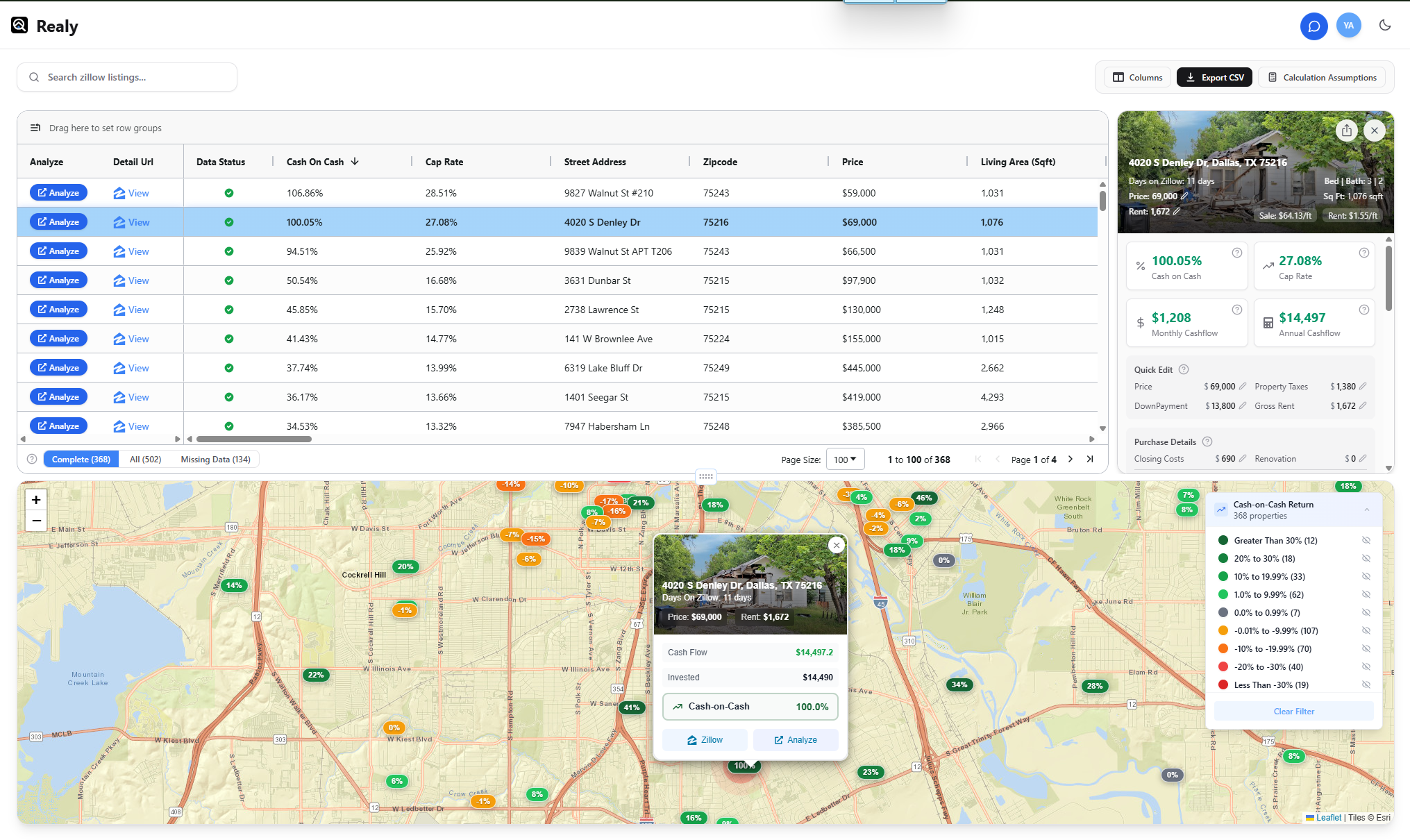
What you can do here:
- Deep-dive one deal: See the full metrics report for the property you selected.
- Customize every input: Fine-tune assumptions for this specific listing (rent, rehab, loan terms, expenses, and more).
- Share reports: Send your analysis to partners, lenders, or your team so everyone works from the same numbers.
The side panel keeps you inside the analyzer tab while staying interactive with the map and table behind it.
Step 4 (Zillow Listing Page): Mini Side Panel
When you navigate to a single property on Zillow (for example, a home details page), Realy shows a compact mini side panel along the edge of the page.
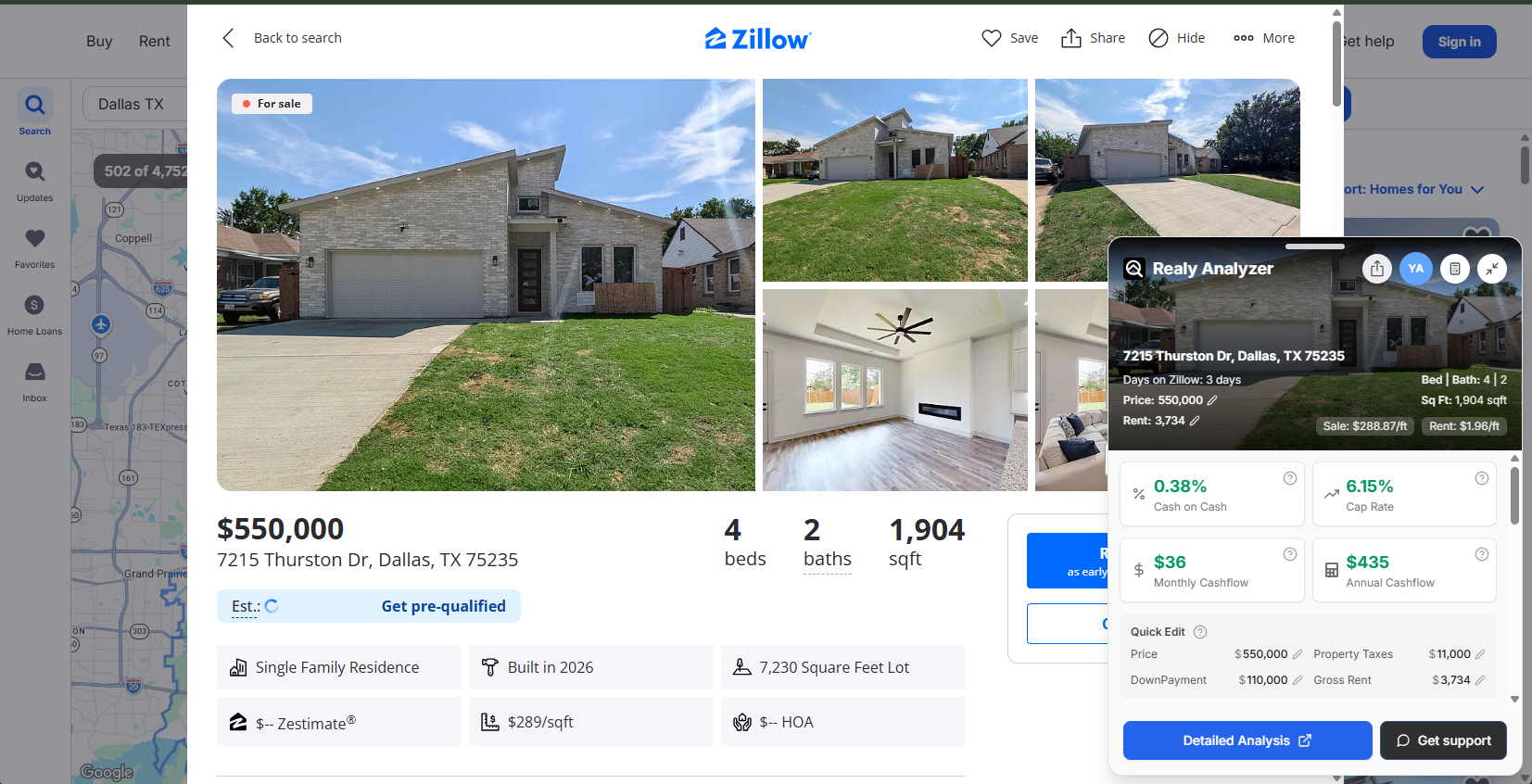
What to know:
- Resizable height: Drag the panel edge to show more or less detail while you scroll photos and listing facts on Zillow.
- Calculator icon (top right): Open assumption controls, the same kind of editing you get in the extension tab and full side panel.
- Full control on the listing: Adjust metrics and inputs without leaving the property page you are already evaluating.
This is the fastest path when you land on one listing from an email alert, saved search, or direct link and want instant underwriting.
Step 5 (Realy App): Detailed Analysis (Synced)
From the mini side panel (on a Zillow detail page) or from the property side panel (in the extension tab), click Detailed analysis. That opens the property on Realy.app with the full analytics experience.
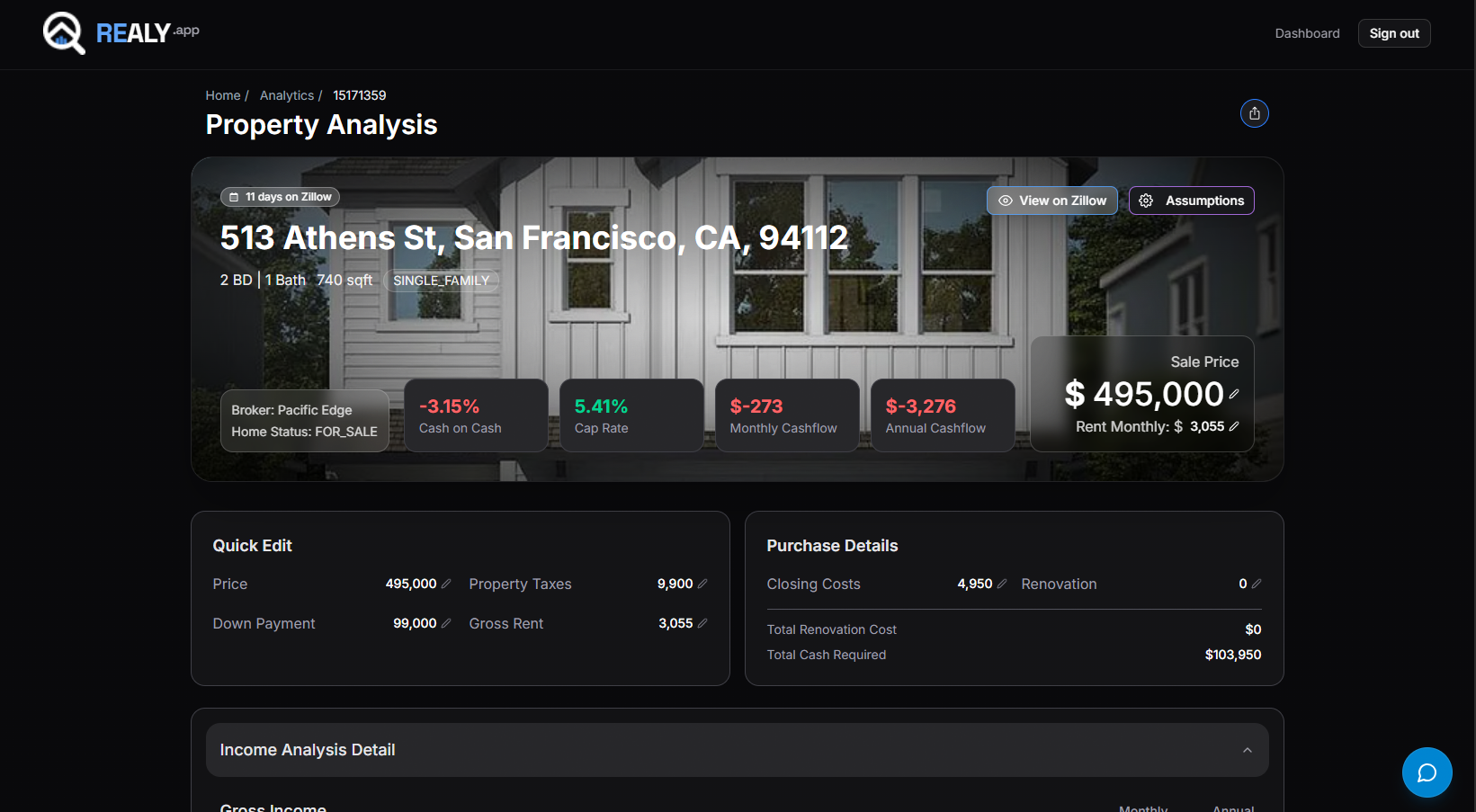
What you get:
- Full-screen analytics: Charts, metrics, and editing tools with room for serious underwriting.
- Edit calculation assumptions: Changes sync back to the Chrome extension so your numbers stay consistent everywhere you work.
- Update metrics and inputs: Full control over rent, expenses, financing, and strategy-specific fields.
Use the extension for speed while browsing Zillow; use the app when you want the richest view and a single source of truth that follows you across tabs.
Quick Reference: Where Each View Lives
| Step | Where you are | What opens | Best for |
|---|---|---|---|
| 1 | Zillow search page | Floating Open Realy Analyzer → extension tab | Screening a whole search |
| 2 | Realy extension tab | Table + map + global assumptions | Comparing many listings |
| 3 | Extension tab (listing click) | Property side panel + shareable report | One-deal deep dive in-tab |
| 4 | Zillow listing detail page | Mini side panel (resizable) | Underwriting a single URL |
| 5 | Realy.app | Detailed analysis (synced with extension) | Full analytics and persistence |
Tips for a Smooth Workflow
- Start on search: Run your Zillow filters (price, beds, property type), then open the analyzer from the search page to rank the whole result set.
- Set assumptions once: Align financing and expense defaults in the extension tab before clicking individual listings.
- Click through on outliers: Use the map or table to open side panels only on listings that pass your metric thresholds.
- Jump to the app for decisions: Use Detailed analysis when you are ready to save, refine, or share a formal report.
- Keep the extension updated: The Chrome Web Store listing delivers fixes and new features as they ship.
Get Started
Install Realy, open a Zillow search in your target market, and click Open Realy Analyzer. Within a few seconds you will see the same listings you already found, ranked and ready for investment decisions.
Ready to analyze deals faster?
Download Realy for free, or share this with an investor friend.