Realy Table Procedure: Filter, Group, Columns, and Export CSV
How to use Realy's AG Grid table on Zillow search results — Complete/Missing data modes, column picker, grouping, aggregation, and CSV export — step by step.
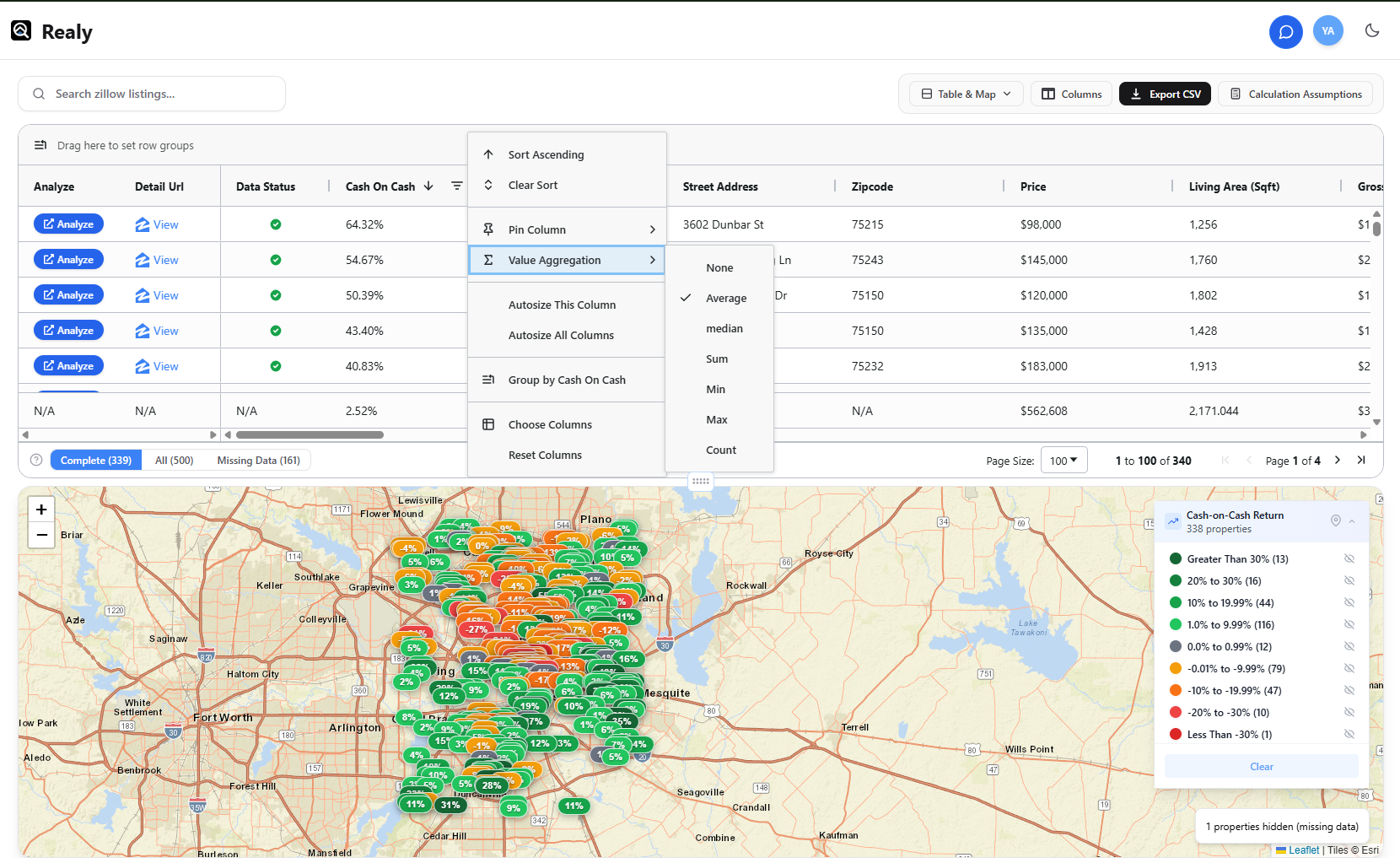
The Analyzer table is the primary screening surface: sort, filter, group, and export every listing from your current Zillow search with institutional-style grid controls. Default sort is Cash on Cash descending.
This procedure mirrors Docs → Table (AG Grid).
Layout First (Optional)
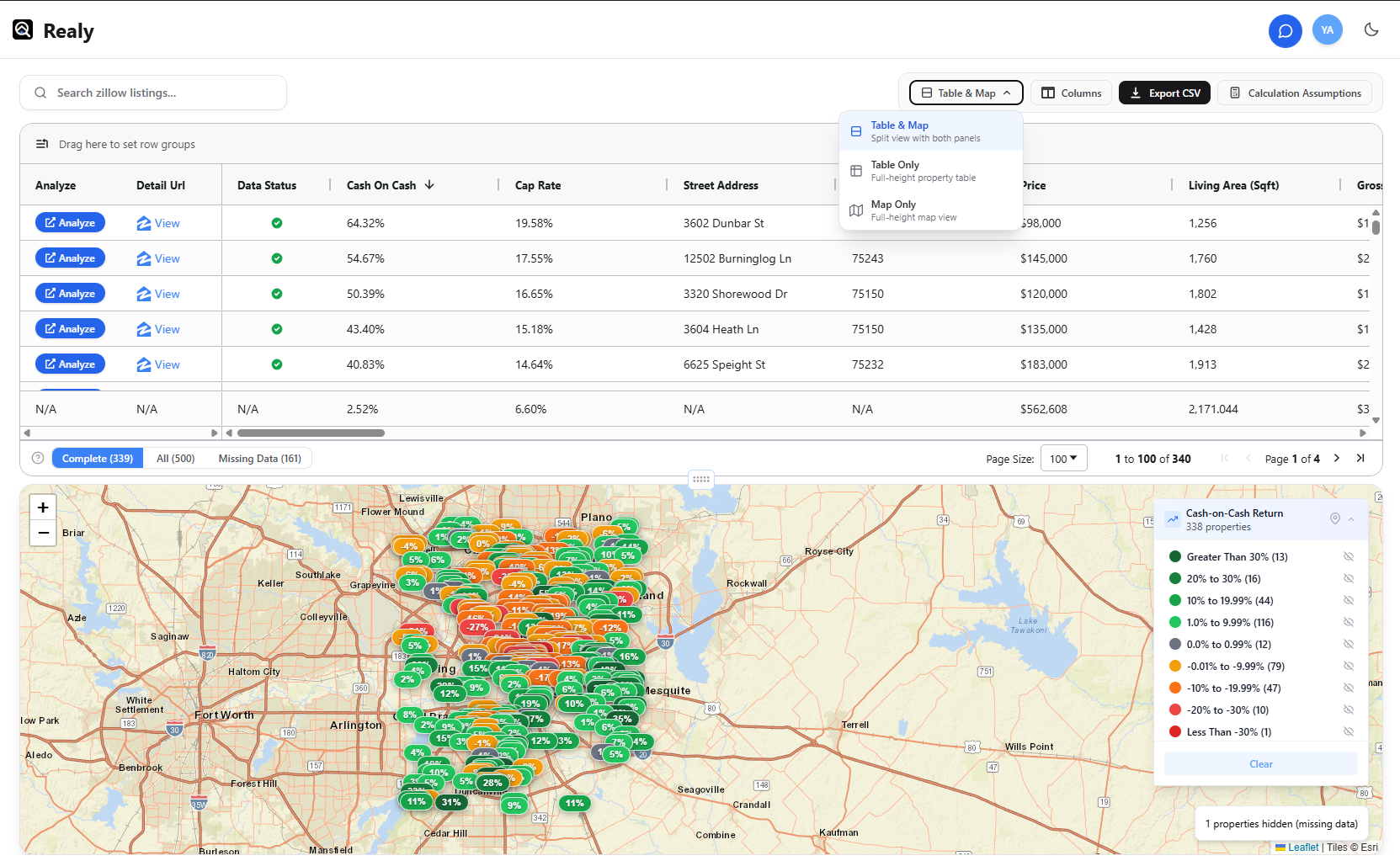
From the toolbar layout control you can choose:
| Mode | When to use |
|---|---|
| Table & Map | Default split — screen metrics and geography together |
| Table Only | Dense sorting, filtering, grouping |
| Map Only | Geographic scan without the grid |
Layout choice is saved for next time. Details: Docs → Layout modes.
Procedure: Screen a Market in the Grid
Step 1 — Set assumptions
Open Calculation Assumptions and apply your financing / OpEx defaults before trusting sorts. See assumptions procedure.
Step 2 — Choose a data mode
Use the Complete / All / Missing Data tabs (with live counts):
- Complete — rows with enough data for a clean metric set
- All — every listing on the search page
- Missing Data — incomplete rows (price, rent, beds/sqft, etc.)
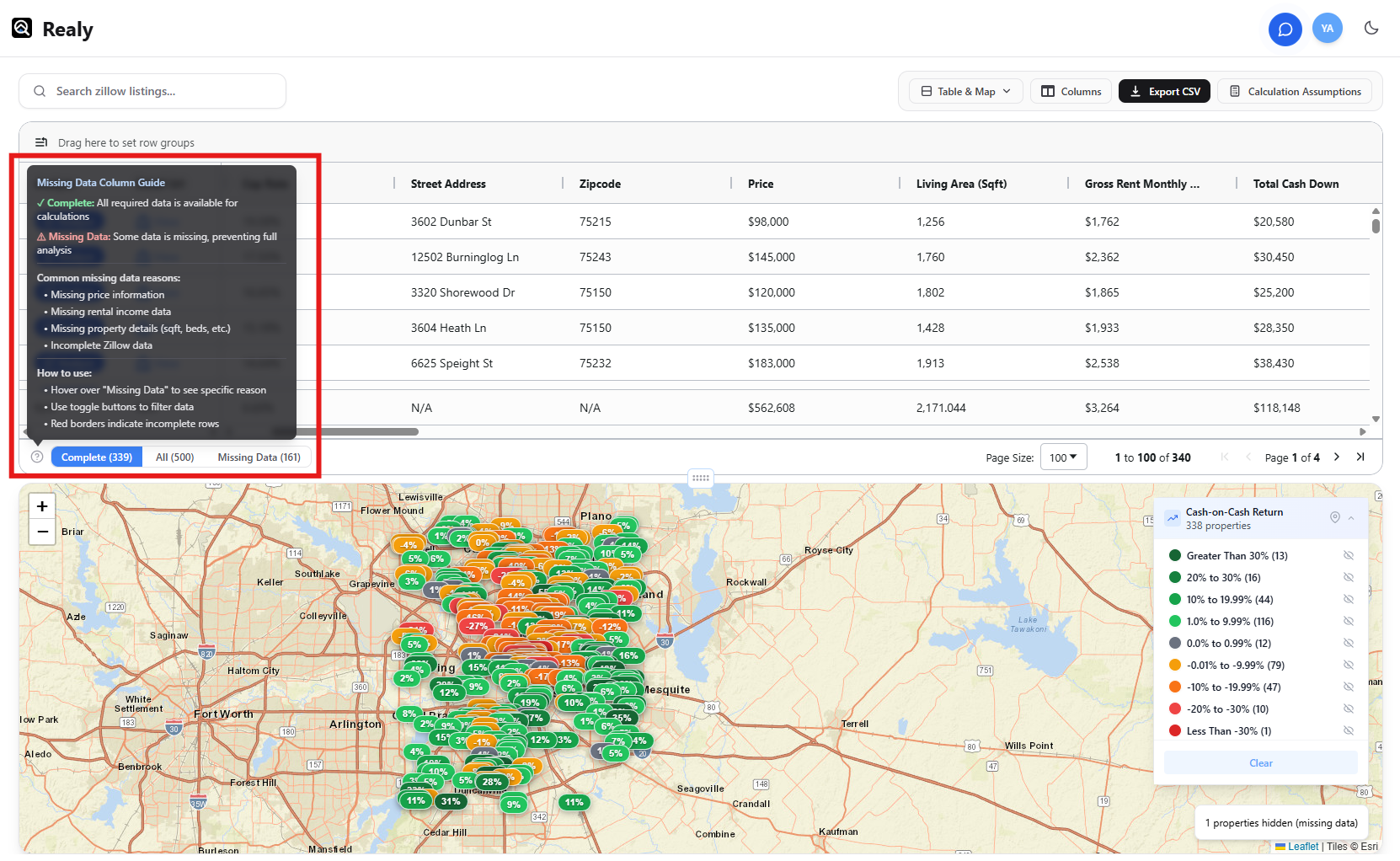
Open the Missing Data Column Guide (help icon) for why rows are incomplete and how red borders work.
Step 3 — Search and filter
- Use Search zillow listings… for quick text find
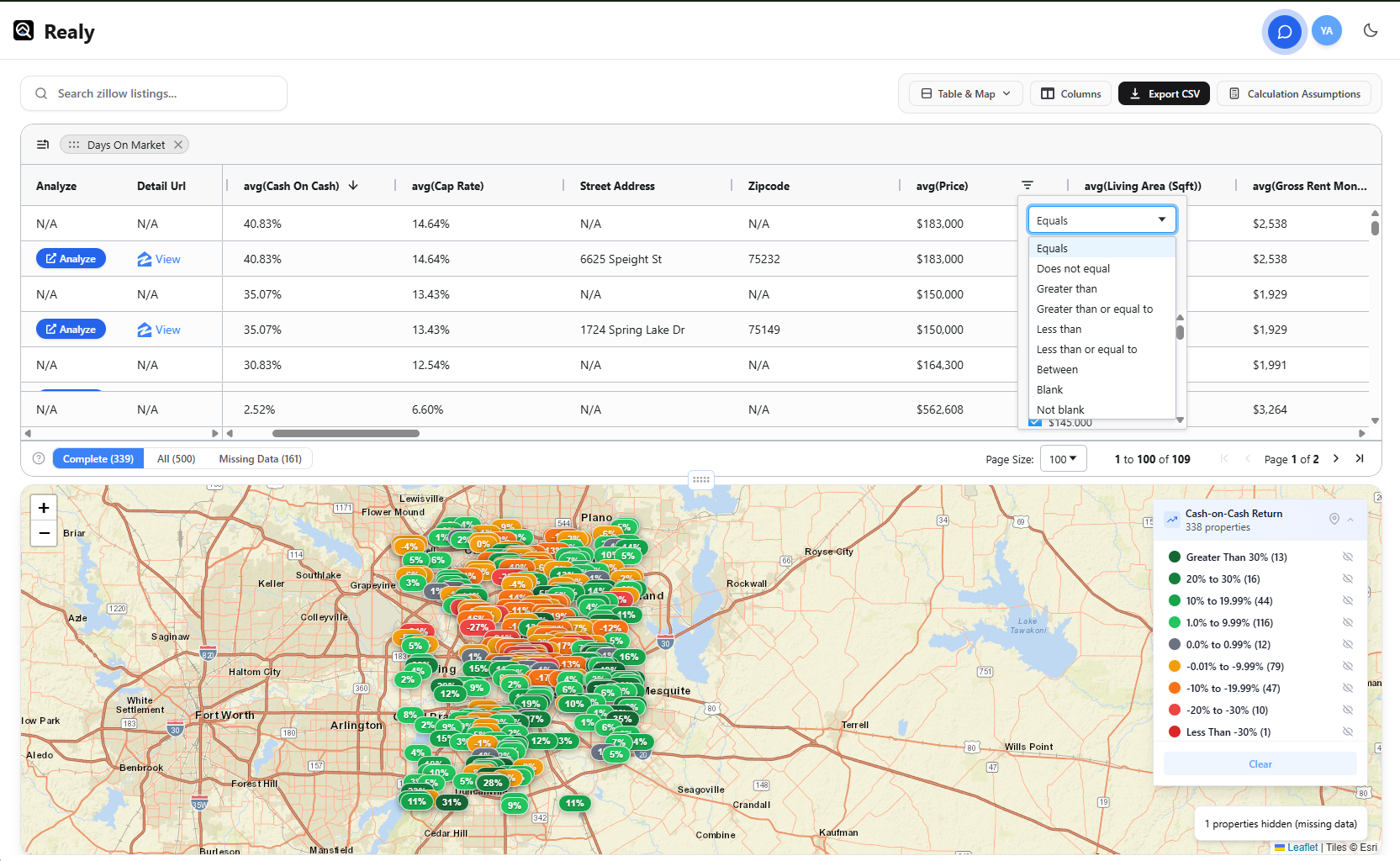
- Apply column filters; remove chips or Reset to clear all
- Resize, reorder, and sort columns — preferences persist
Step 4 — Configure columns
Open Select Table Columns / Columns:
- Browse by category (Property info, Financial metrics, Operating expenses, …)
- Search by name; toggle whole categories
- Star Favorites; drag-reorder selected columns
- Actions and Listing stay locked/pinned
Filter options per column:
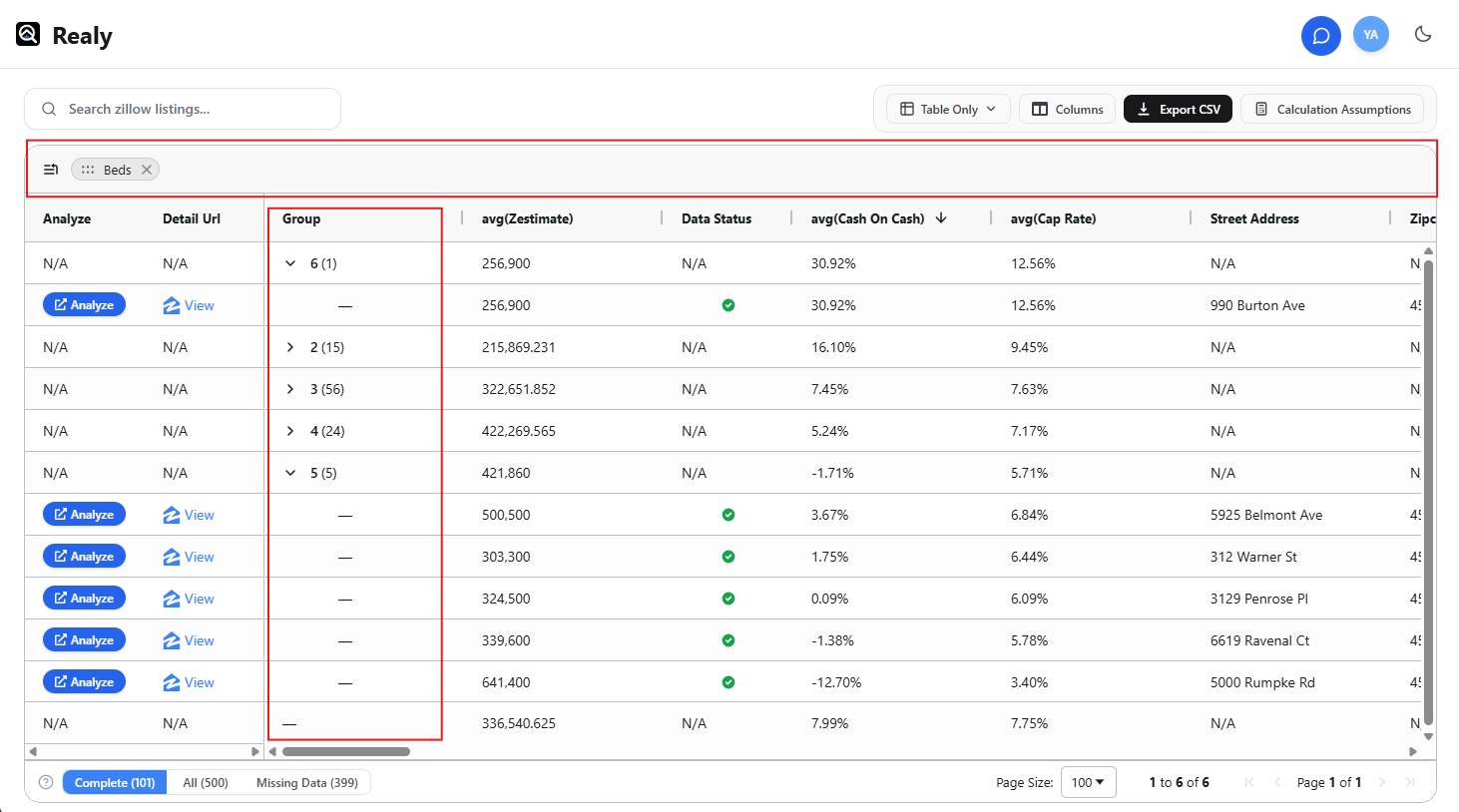
Step 5 — Group and aggregate (optional)
Use column grouping to roll up by city, home type, or other fields and scan groups instead of hundreds of flat rows.
.png)
Step 6 — Act on a row
From row actions you can open the listing on Zillow, open the analysis panel, or jump toward share / detailed web analysis depending on your plan.
Step 7 — Export CSV
Click Export CSV to download the current table view (filters, columns, and sort as shown). Use this for partner handoffs or a final spreadsheet model — not as your first discovery step.
Quick Checklist
- Assumptions applied
- Complete (or All) mode selected intentionally
- Columns trimmed to metrics you actually use
- Sorted by CoC or Cap Rate
- CSV exported only after filters match your shortlist
Related
- Docs: Table toolbar & filters
- Docs: Columns
- Analyze many Zillow listings without a spreadsheet
- Export Zillow investment analysis to Google Sheets
Canonical reference: /docs.
Ready to analyze deals faster?
Download Realy for free, or share this with an investor friend.